ค่าพวกนี้เอาไว้ตรวจสอบสัญญาณ ADSL
- Noise margin หรือค่าความเข้มของสัญญาณ จะต้องมีค่ามากกว่า 10 ทั้งupstream/Downstream
- Attenuation (dB) คือ ค่าสัญญาณรบกวนภายในสาย ไม่ควรจะเกิน 50dB ทั้ง local และ remote
- SNR Margin (dB) คือ ค่าความเข้มของสัญญาณ ไม่ควรจะต่ำกว่า 10dB ทั้ง local และ remote
ค่าเท่าไรถึงจะดี
ค่า Upload , Download หน่วยเป็น dB
SNR >= 10 (มากเท่าไหร่ยิ่งดี)
Line Atten =< 50 (ยิ่งน้อยยิ่งดี)
ปัจจัยอื่นๆ เช่น Error ในสาย , Noise , การเดินสาย เป็นต้น
SNR Margin
5db or below =bad, no sync/intermittent sync
8db-13db = average - and no sync issues
14db-22db = very good
23db-28db = excellent
29db-35db = rare, can throw a rock at co/remote
Line Attenuation
ต่ำกว่า 20 = rare, great copper lines, close to co/remote
20-30 = excellent
30-40 = very good
40-60 = average
60-65 = poor
65 and above will have issues
ในกรณีที่มีค่า SNR Margin ต่ำ หรือมี Line Attenuation สูง ให้พิจารณาเรื่องดังต่อไปนี้
1. เดินสายโทรศัพท์ตามทางสายไฟบ้านหรือไม่ สายไฟแรงสูงที่อยู่ใกล้ๆ จะส่งผลให้เกิดสัญญาณรบกวน ( Noise) มากขึ้น
2. สายโทรศัพท์มาตรฐานหรือไม่ สายโทรศัพท์ที่ไม่ได้มาตรฐาน (เส้นลวดอาจมีขนาดเล็ก) จะทำให้การค่าความต้านทานสูงขึ้นและ Line Attenuation จะมีมากขึ้น
3. อุปกรณ์ต่อพ่วงของโทรศัพท์ เช่น POTS Splitter Micro filter โทรศัพท์ต่อพ่วง มีผลกระทบต่อทั้ง 2 ปัจจัย ยิ่งมีอุปกรณ์ต่อพ่วงมาก ก็จะเกิดสัญญาณรบกวนและ Line Attenuation จะมีค่ามากขึ้น
4. เช็คจุดที่มีการเชื่อมต่อสายโทรศัพท์ ว่ามีการขันสายยึดแน่นเรียบร้อยหรือไม่
ค่าพวกนี้เอาไว้ตรวจสอบสัญญาณ ADSL
- Noise margin หรือค่าความเข้มของสัญญาณ จะต้องมีค่ามากกว่า 10 ทั้งupstream/Downstream
- Attenuation (dB) คือ ค่าสัญญาณรบกวนภายในสาย ไม่ควรจะเกิน 50dB ทั้ง local และ remote
- SNR Margin (dB) คือ ค่าความเข้มของสัญญาณ ไม่ควรจะต่ำกว่า 10dB ทั้ง local และ remote
จริงๆแล้วต้องยังงี้ครับ
- Noise Margin คือ ค่าของสัญญาณรบกวนจากภายนอกครับทำให้รูปคลื่นของสัญญาณเปลี่ยนไป
- Attenuation คือ ค่าของสัญญาณที่โดนลดทอนลง ซึ่งขึ้นอยู่กับ คุณภาพของสายสัญญาณ ความยาว
- SNR Margin คือค่า ของสัญญาณต่อค่าของสัญญาณรบกวน Signal to Noise Ratio
Error: 81000306
1. Make sure that you are connected to the Internet. Start Microsoft Internet Explorer, and then try to visit the following Web sites:
Messenger service status
Microsoft web site
If you cannot visit these sites, contact your Internet service provider (ISP) for information about how to set up your Internet connection so that you can visit both secure (https) and non-secure (http) sites.
2. If you are able to visit the Messenger service status page and notice that there is a service issue, please visit the site later to determine when the service is available so that you can sign into Messenger. If the site indicates that the all systems are stable and running, go to the next step.
3. Clear the proxy settings in Windows Live Messenger.
3.a. Start Windows Live Messenger.
3.b. On the Tools menu, click Options.
3.c. Click Connection in the left navigation pane.
3.d. Click Advanced Settings in the Connection Settings section.
3.e. Delete the content of the SOCKS field.
3.f. Click OK two times to save the settings.
3.g. After you clear the proxy settings, verify if you are able to sign into Messenger. If you are still not able to sign into Messenger then please go to the next step.
4. If you are using Windows Vista, disable the Auto Tuning Networking feature:
4.a. Click Start, click All Programs, click Accessories, and then right-click Command Prompt and choose Run as administrator.
4.b. Click Continue when Windows requests permission to continue.
4.c. At the command prompt, type the following command, and then press ENTER: netsh interface tcp set global autotuninglevel=disabled
Note: This command disables the Window Auto Tuning feature.
4.d. After you disable the Auto Tuning Networking feature, verify if you are able to sign into Messenger.
5. If you are still not able to sign into Windows Live Messenger then please re-enable this feature using the information below and then go to the next step.
Re-enable the Auto Tuning Networking feature by typing the following command at the command prompt, and then pressing ENTER:
netsh interface tcp set global autotuninglevel=normal
Note: This command enables Window Auto Tuning again so that you can take advantage of the network throughput performance increase it provides.
6. If you are using Windows Vista and you also use a router (eg. Linksys, D-Link, Netgear) on your home network to connect to the internet please visit the router manufacturer’s website to update to the latest firmware for that product.
1. install windows vista with the serial below. ( No need)
2. after that, log into vista and extract vistaloader.rar into a folder. eg c:\vistaloader
3. run comand prompt with administrator access. right click on Command Prompt and Run as Administrator
4. browse into c:\vistaloader eg. cd\vistaloader
5. type install.cmd [oem] e.g.
6. reboot your machine...and you are activated...
*replace [oem] with asus, hp, acer ,lenovo, sony or dell. eg. if you are using dell, just type install.cmd dell in the command prompt with administrator acess.
Windows Vista Home Basic OEM: 762HW-QD98X-TQVXJ-8RKRQ-RJC9V
Windows Vista Home Premium OEM: 2TYBW-XKCQM-XY9X3-JDXYP-6CJ97
Windows Vista Business OEM: 72PFD-BCBK8-R7X4H-6F2XJ-VVMP9
Windows Vista Ultimate OEM: 6F2D7-2PCG6-YQQTB-FWK9V-932CC

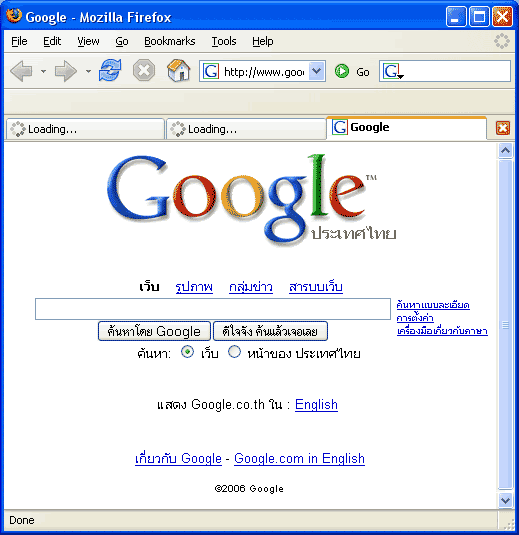
วิธีการแก้ปัญหา Font โปรแกรม FireFox เมื่อใช้งานดูเว็บต่างๆ ตัวหนังสืออาจจะเล็กชอบกล ตามตัวอย่างภาพ
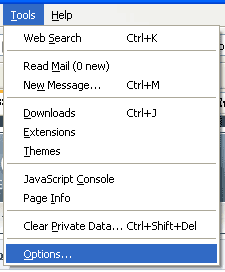
วิธีแก้ไขก็ไม่ยากเลยทำตามขั้นตอนดังนี้ครับ เข้าเมนู Tools > Options
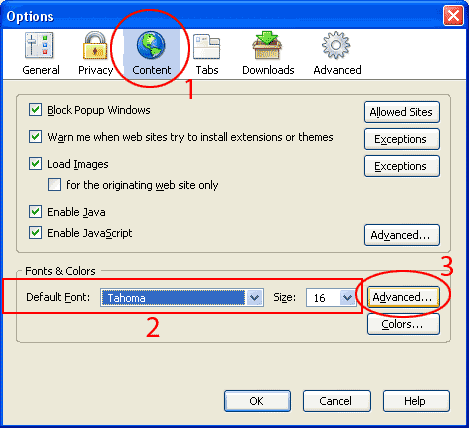
เลือก Tab Contents แล้วตั้งค่าตามภาพ เลือก Font Tahoma 16 แล้วกดปุ่ม Advance ข้างๆ
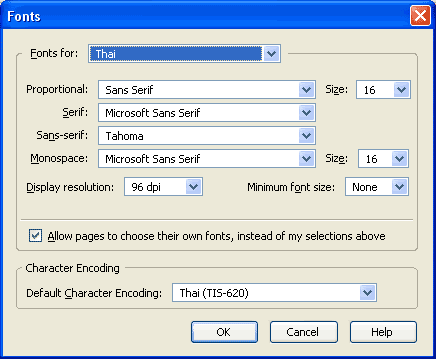
ตั้งค่า Font ตามรูปภาพ
แล้วกด OK > OK ออกจากการตั้งค่าภาษา เสร็จแล้ว ได้อ่านตัวไม่เล็กจนเกินไปซักที